Dashboard Overview
The GM Scraper Dashboard is your central control panel. It gives you a bird's-eye view of your scraping activity and marketing campaigns.
Sections Breakdown:
1: Top Summary Cards
At the top, you’ll see four cards that track your scraper and campaign activity:
- Total Scrapers: Count of all scraping tasks you've created.
- Pending Scrapers: Scrapers currently waiting to be processed.
- Completed Scrapers: Finished scrapers with data ready to review or export.
- Total Campaigns: Number of marketing campaigns launched using scraped data. Each card updates automatically as you interact with the app.

2: Scraper Results Overview
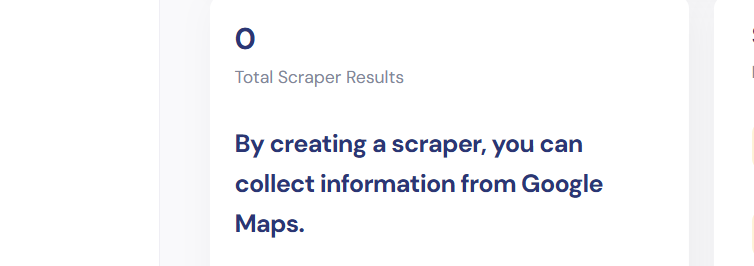
Shows the total number of business records collected through your scrapers. This number reflects all results gathered from different scraping jobs.
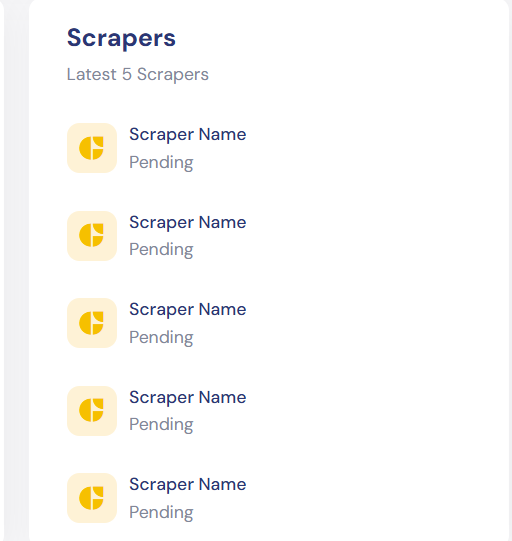
3: Latest Five Scrapers
This section lists your five most recent scrapers, along with their statuses (e.g., Pending, Completed). You'll see the scraper names and icons indicating their current state.
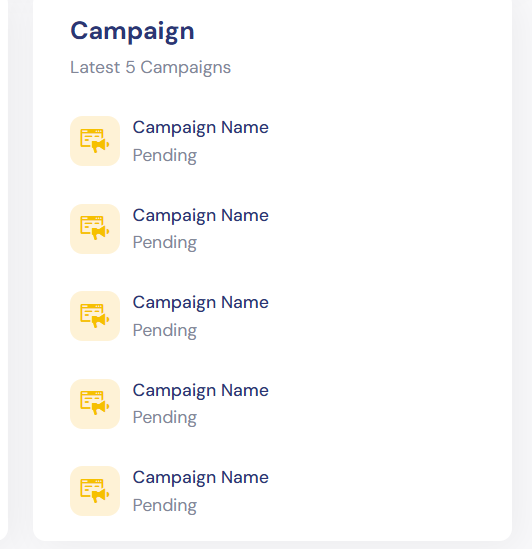
4: Latest Five Campaigns
This section displays your five most recent marketing campaigns. Each entry includes the campaign name and current status (like Pending or Active).
5: Analytics & Graphs
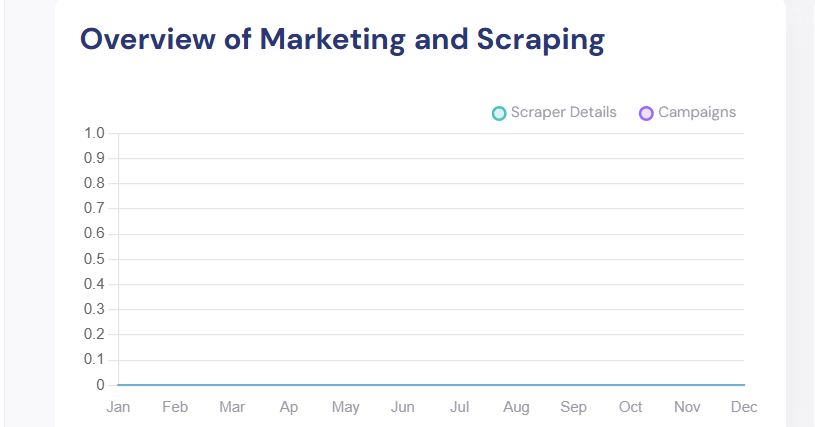
a. Overview of Marketing and Scraping
This graph displays the monthly count of:
- Scraper Details: Total scraped records per month.
- Campaigns: Total campaigns launched that month. Use it to monitor trends in lead collection and outreach.
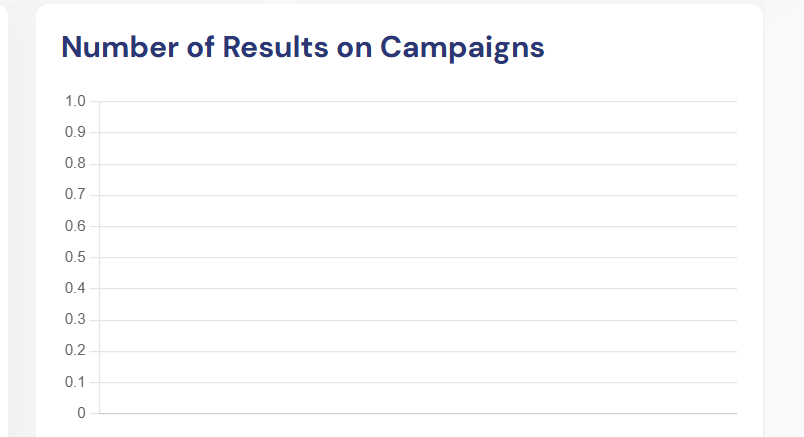
b. Number of Results on Campaigns
This graph breaks down the volume of leads each campaign used. It helps you understand which scrapers are yielding the most marketing data.
6: In-Process Scrapers
- Lists any scrapers that are currently running.
- Displays project name, total results found (live count), current status, and any available actions.
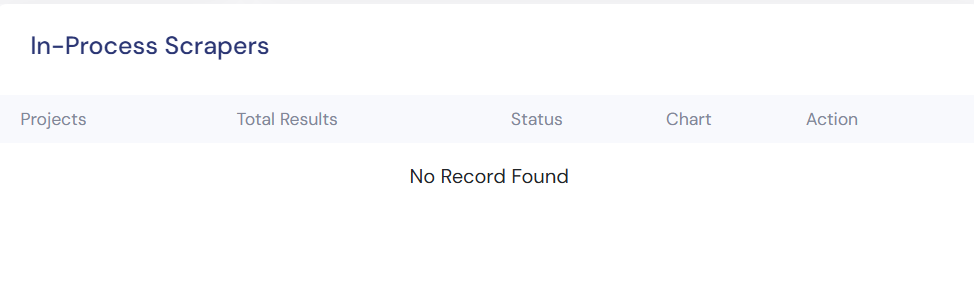 Note: Only one scraper can run at a time for performance control.
7: Documentation & Updates Panel
You can locate it at the bottom left. Click “Visit Now” to access tutorials, updates, and the full product documentation. This section is perfect for learning how to maximize your results with GM Scraper.

Quick Recap: What You Can Do From the Dashboard
- Start new scrapers via the “Get Started” button.
- Track scraping performance and trends month-by-month.
- Monitor campaign results and prepare for your next outreach step.
- Access support material and stay up to date with best practices.
💡 Pro Tip:
Keep an eye on the graph trends. If one scraper type is consistently generating more results (like radius-based vs. keyword-based), focus your scraping strategy accordingly.