Campaigns
Transform scraped business data into targeted outreach campaigns with multi-channel messaging.
Where to Find It
Navigate: Sidebar Menu → Marketing → Campaigns List → Create Campaign
Note: Requires completed scrapers with valid contact data
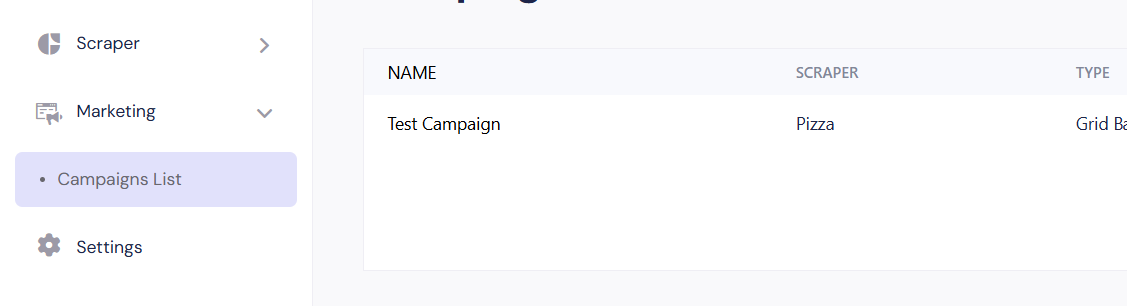
Step #1: Campaign Setup
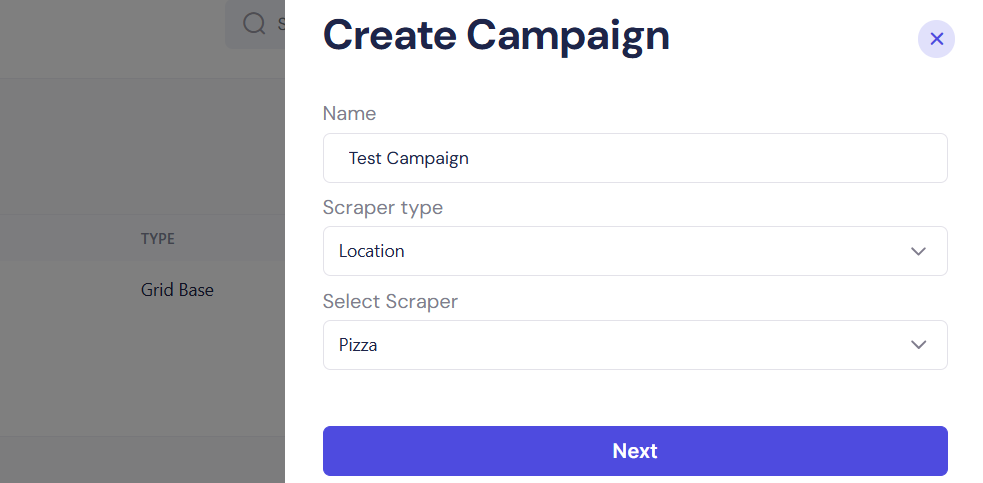
Configure core campaign parameters:
- Name
- Unique identifier (e.g., "Pizza Shop Promo Q3")
- Pro Tip: Include target industry + quarter for tracking
- Scraper Type
- Select data source type:
- Location (e.g., "Pizza" in New York)
- Radius/Keyword/URL
- System auto-filters compatible scrapers
- Select data source type:
- Select Scraper
- Dropdown menu of your completed scrapers
- Shows scraper name + result count (e.g., "Pizza (247 results)")
- Next Button
- Validates selections before proceeding
Step #2: Message Crafting
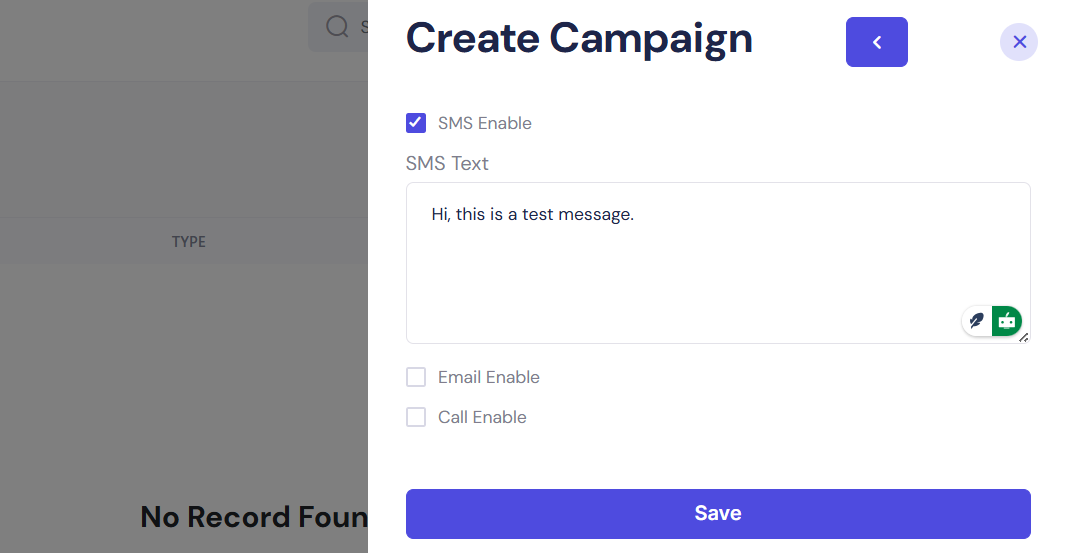
You can send SMS, Email, and even a Call using a pre-written script.
- Personalization Tokens (Type
{{to see options):{{business_name}}{{city}}{{rating}}(e.g., "Rated{{rating}}stars!")
- Dynamic Preview:
- Toggle between device views (mobile/desktop)
- Test rendering across carriers/email clients
Step #3: Finalization
Click ‘Save’ as it stores the campaign draft (ready for launch)
Best Practices for Campaigns
- Name your campaigns based on audience, location, or funnel stage
- Keep the scraper + campaign linked clearly for data traceability
- Use campaigns to segment outreach strategies by region, industry, or service
- Reuse scraped data across multiple campaigns