Bulk Keyword Scraper (CSV Upload)
If you need to collect business data from hundreds or even thousands of keywords, manually entering each one is time-consuming. That’s where the bulk CSV uploader comes in.
You can simply upload a list of combinations, and GM Scraper will automatically queue and process each pair—all in one go.
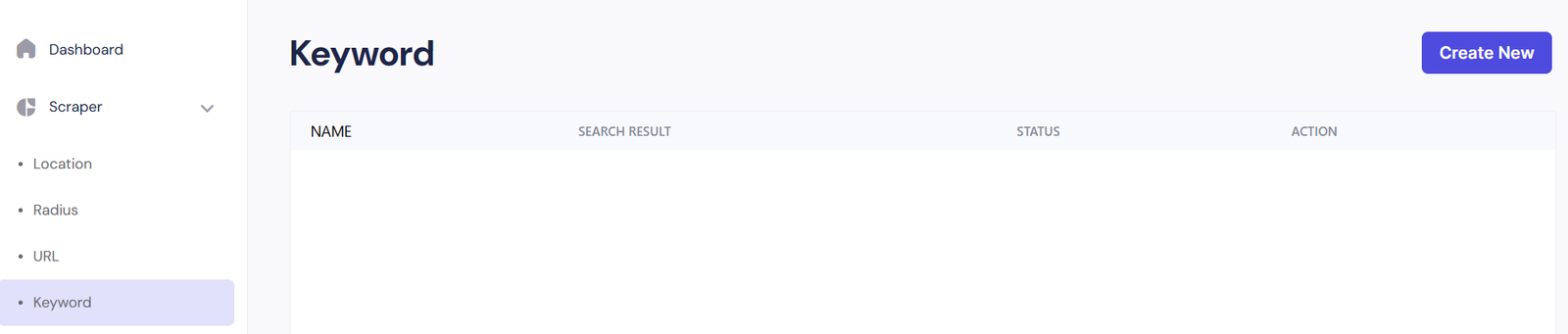
How to Use the Bulk Keyword Scraper
From the Keyword tab:
- Click the Create New button
- The Create Scraper modal will open (as shown in the screenshot)
- Enter a Scraper Name — e.g., Dental Leads USA
- Upload a CSV file containing your data
- You can either drag and drop the file
- Or click Choose file to upload from your computer
- Click Save
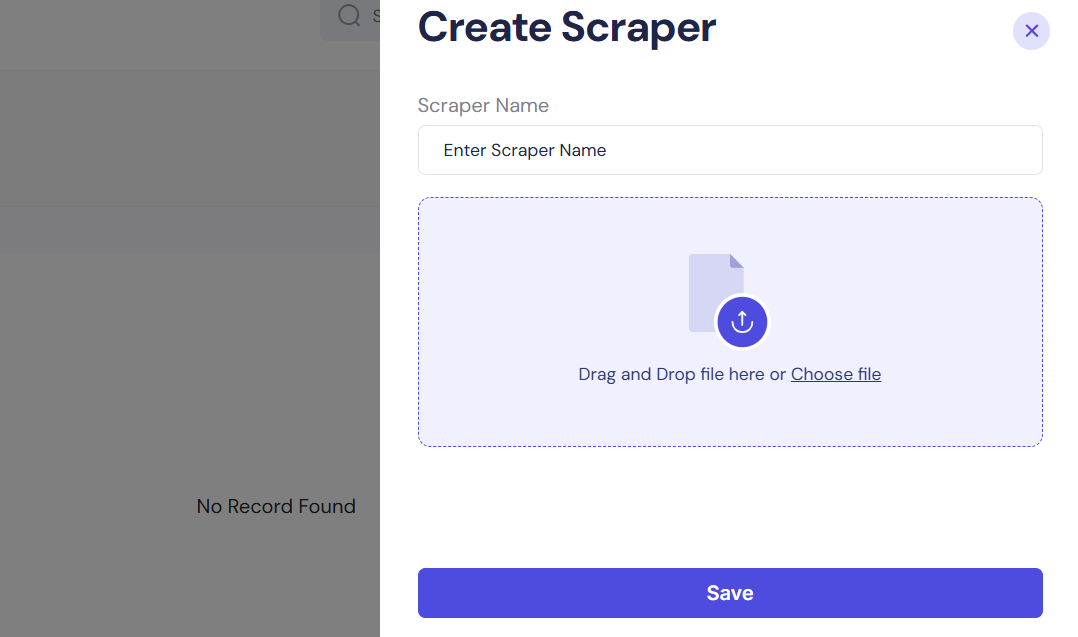
GM Scraper will now start processing the CSV rows, creating individual scraping tasks in the background for each line.
CSV File Format (Template)
Your CSV file should follow this format:
- Keyword in Location
- Dentist in Los Angeles
- Restaurant in New York
- Keyword: Type of business or service you want to scrape
- Location: City or region where you want to search
- ✅ No headers required
- ✅ No quotation marks needed
- ✅ Just clean, single line values
Pro Tips for CSV Upload
- Stick to 1 keyword + 1 location per row
- You can upload hundreds of rows at once — ideal for outreach agencies
- Name your scraper clearly (e.g., Plumbers UK 2025) so you can track results
- Scrapers run asynchronously — you don’t need to wait for one to finish before starting another
- If your file has errors or formatting issues, the system will prompt you to correct them
After Upload: What Happens?
Once the CSV is uploaded and saved:
- You’ll be returned to the Keyword table view
- Each row in the file becomes a separate task
- You’ll see results populate over time under Search Results and Status
- When complete, each task can be viewed, exported, or deleted individually